
In Pentest Home Lab – 0x0 – Building a virtual corporate domain, we talked about why you would want to build your own AD pentest lab, where you can build it, and the pros and cons of each option.
In Pentest Home Lab – 0x1 – Building Your AD Lab on AWS, we walked through setting up a fully functional home lab in AWS.
The series so far:
Table of Contents
- What are we going to build?
- Example server specs
- Let’s talk about network placement
- Installing the hypervisor (Proxmox VE)
- Getting Windows server software
- Obtaining evaluation version of Windows server
- Downloading Windows 10 ISO
- Transfering ISOs to Proxmox
- VM #1: Creating our Server 2012r2 template
- Configuring a Proxmox VM (Windows server 2012r2)
- Installing Windows Server 2012r2
- Converting a VM to a template in Proxmox
- VM #2: Creating your 2012r2 domain controller
- Creating a new VM by cloning your template
- Promoting your first server to a DC
- You now have an Active Directory Domain – Add some users
- Add at least one admin user to your domain admins group
- VM #3: Creating your second 2012r2 server
- Configuring DNS
- Adding host to the domain
- Adding domain users to the remote desktop group
- VM #4: Creating our Windows 10 Template
- VMs #5 & #6: Creating two Windows 10 VMs from the template
What are we going to build?
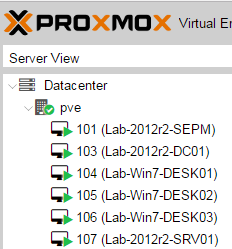
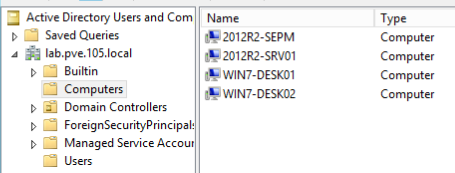
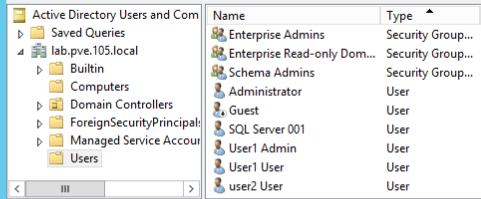
You will create at least 2 users and 1 administrator account:
Example server specs
I’m including my server specs just as a reference point. I’ve found it really helpful in the past when people have done the same:
2013 configuration
CPU: AMD FX-Series 8-Core (Circa 2013)
SSD: 512 GB SSD
CPU: AMD FX-Series 8-Core (Circa 2013)
SSD: 1TB SSD (Samsung 850 EVO 1TB 2.5-Inch SATA III Internal)
If you are building on consumer hardware like I did, I suggest just going right to 1TB of SSD and 32GB of RAM. I know it isn’t cheap, but with only 500GB SSD and 16GB RAM I ran up against those limits pretty quickly.
In Pentest Home Lab – 0x0 – Building a virtual corporate domain, I touch on a few other options as well, for instance: Rather than using consumer hardware and an expensive 1Tb SSD, you can buy used enterprise grade stuff on ebay, which often comes with tons of storage and memory. This is what my friend @mikehacksthings does, who is also the one who introduced me to ProxmoxVE.
Of course, there are many ways to do this, so here are more great resources that talk about some of the different hardware options:
My new home lab setup by Carlos Perez
Building an Effective Active Directory Lab Environment for Testing by Sean Metcalf
Intel NUC Super Server by Mubix
Let’s talk about network placement
You can get really fancy and run your lab in a restricted subnet, or you can just keep it simple and run it on the same flat network you use for everything else on your home network. You do not need to separate your lab from your home network. In other words, don’t let network architecture stop you from setting up your lab. I’ve made that mistake before.
If you have a firewall or a router at home you can absolutely place your hypervisor on its own network and control access between your lab and your home network. This is what I am doing now. I have my home network somewhere on 192.168 and I have my lab on 10.0.0.0/24
Another note: I suggest that you use bridged mode for all virtual machines. You can do almost everything you want to do with NAT, but that means you won’t be able to run tools against your lab unless they are being run from other virtual machines in the lab’s private network.
Installing the hypervisor (Proxmox VE)
If you have a favorite hypervisor and don’t want to try Proxmox VE, you can just skip this section.
1) Download the ISO
- https://www.proxmox.com/en/downloads
- I went with Proxmox VE 4.4
2) Transfer ISO to CD/DVD or USB
3) Boot your physical server into the install ISO
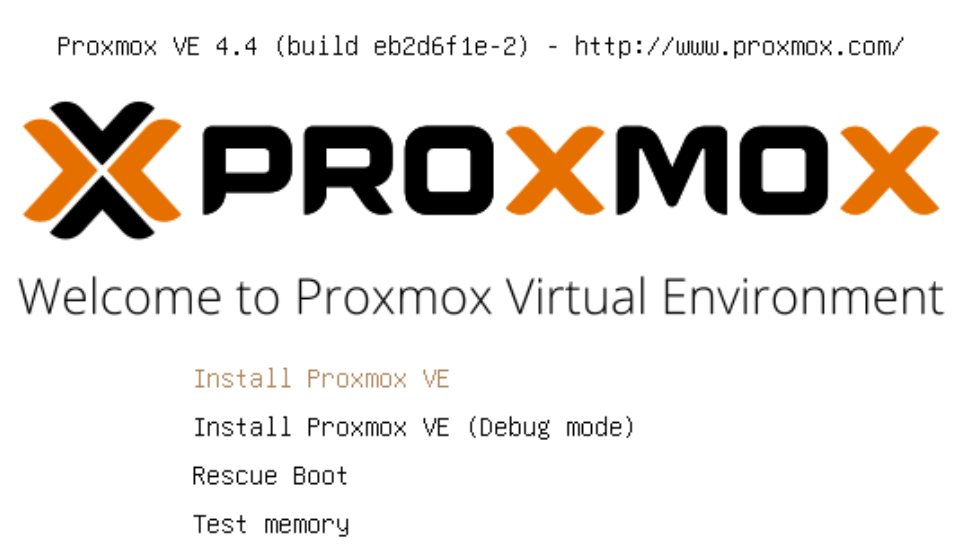
4) Select Install Proxmox VE
5) Select I agree
6) Pick harddisk and select Next
7) Select Country, Time zone, and Keyboard Layout and select Next
8) Select a password and enter your email address (I have not gotten any email from them)
9) Configure management network interface and select Next
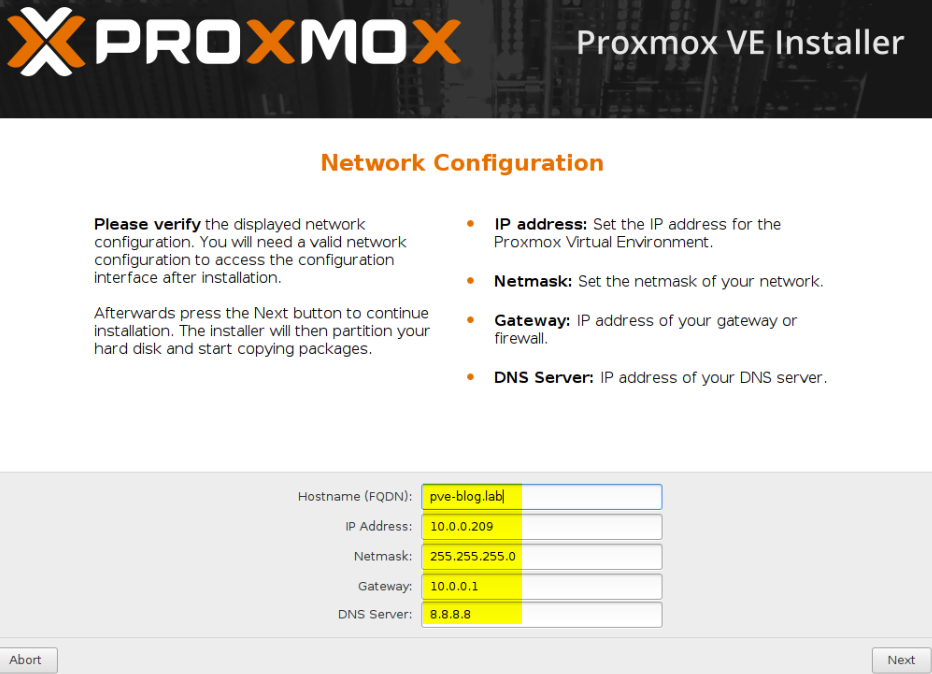
11) Click Reboot
12) At the console, you should see something like this:
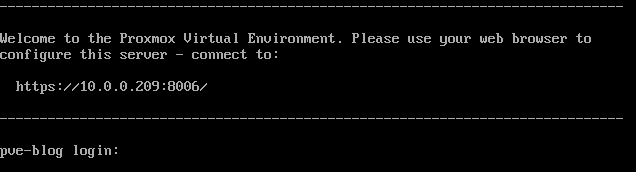
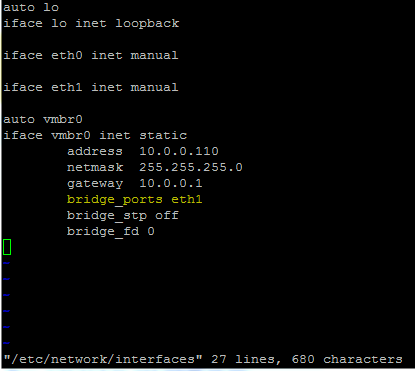
- apt-get update && apt-get -y upgrade
14) You are ready to log in and start building virtual machines
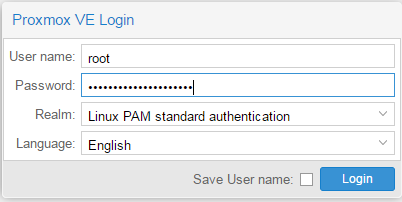
15) Navigate to the IP you gave your PVE (https://IP:8006)

Getting Windows server software
- Required – Windows Server (2012 or 2016)
- Optional – Windows 7 (or 8 or 10)
- Download evaluation versions, which are good for 180 days
- See if your workplace has a key/iso that can be used in a lab environment
- I think if you are a student you can get the OS’s for free
For this post, I’ll walk through the proccess of obtaining an Evaluation License. If you already have licensed copies of windows you can skip the next section:
Obtaining an evaluation license for Windows server
1) Go here: https://www.microsoft.com/en-us/evalcenter/
2) Click the Evaluations square
3) Sign in with your Microsoft account. An old Hotmail account and/or a current outlook.com account should work
4) Click the Evaluations square again

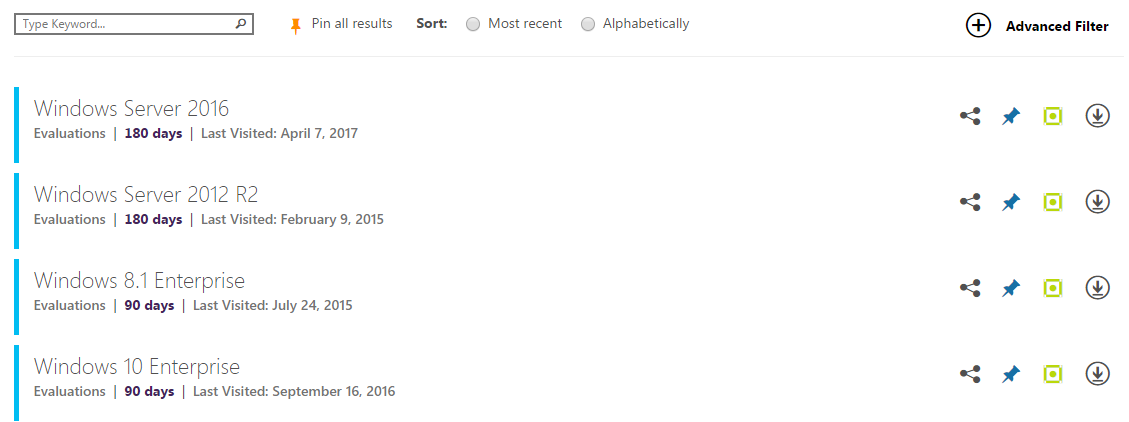

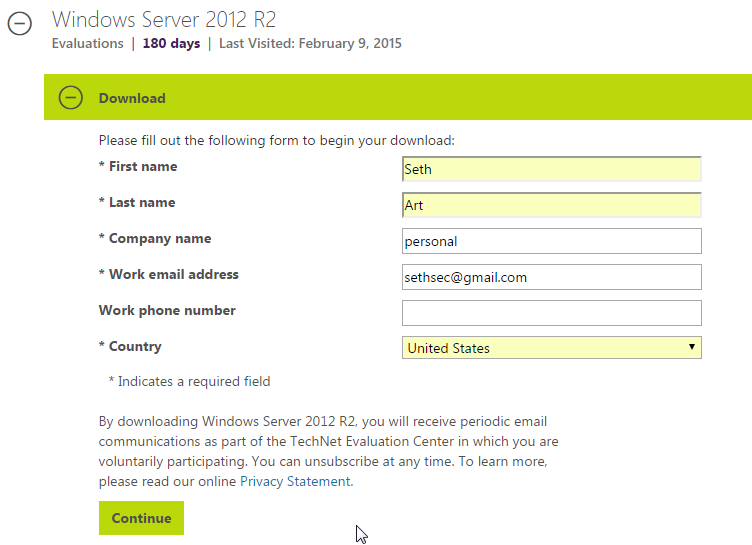
10) Select Download
Downloading Windows 10 ISO
I’ll walk through downloading the windows 10 ISO, but as I mentioned earlier, you can skip windows 10 and use Windows7/8 instead.
1) Click this link: https://www.microsoft.com/en-us/software-download/windows10
2) Click Download tool now
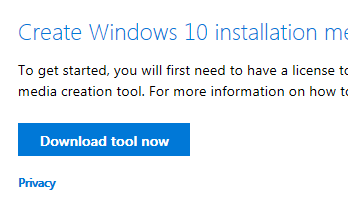
3) Run the tool
4) Click Accept
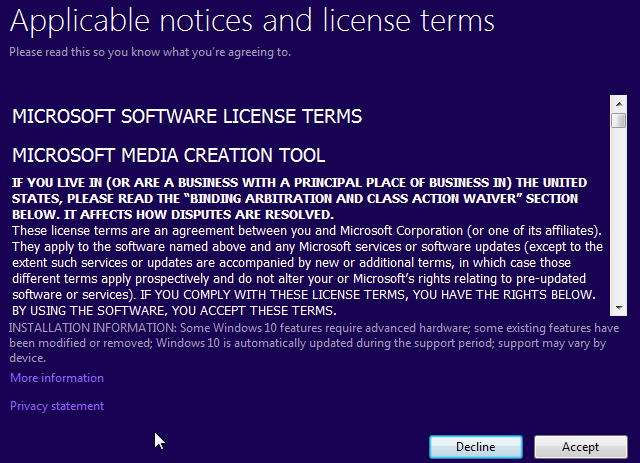
5) Click Create installation media
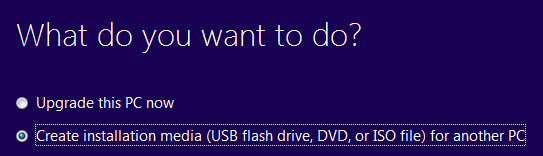
6) Click Next
7) Stick with defaults and click Next

8) Click ISO file
9) Save the ISO (The default filename is windows.iso. I suggest renaming it to Win10Eval.iso or something)
Transfering ISOs to Proxmox
You can either configure a network share for proxmox, or just drop ISO’s in the right directory. The easiest way to do it is to SCP your ISO’s to /var/lib/vz/template/iso/
VM #1: Creating our Server 2012r2 Template
Configuring a Promox VM (Windows Server 2012r2)
1) Log into the proxmox web interface
2) At the top right, click Create VM
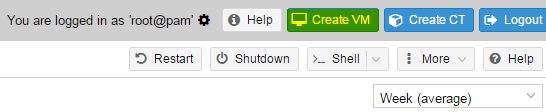
3) General: Enter ID and Name and click next

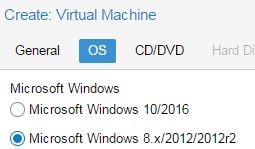
4) OS: Select your OS (Microsoft Windows 8.x/Server 2012r2) and click next
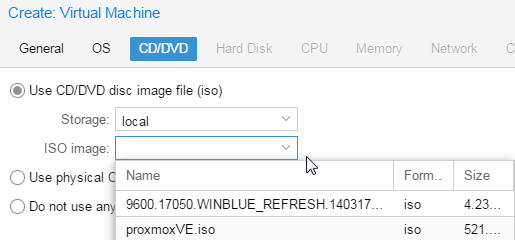
5) Storage: Select local, and then your transferred ISOs should show up in that list. Select the correct windows server 2012 ISO and click next
6) Hard Disk: Click next
7) CPU: Click next
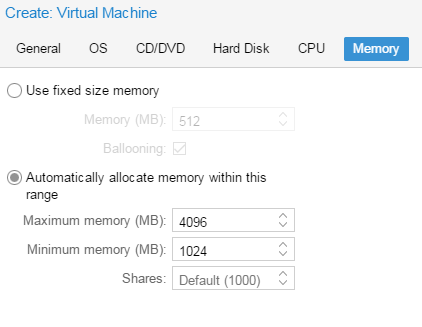
8) Memory: I liked to select Automatically allocate memory within this range, and for Windows I tell it to stay between 1 and 4GB. You can certainly tweak these based on how much RAM you have. 9) Click next
10) Network: Keep defaults (Bridged mode), and click next
11) Click finish
12) In the right side column, find and right click the newly created instance. Click start
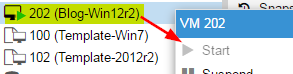
13) One column over, click Console
At this point, we are just installing Windows Server 2012r2 as we would normally. I’m going to keep it simple with some bulleted instructions and some commentary, but if you are looking for a similar post that has some nice looking pictures to go with these steps, check out the following series (Parts 1-3): https://www.psattack.com/articles/20160718/setting-up-an-active-directory-lab-part-1/
Installing Windows Server 2012r2
3) Accept Default settings and click Next
4) Click Install Now
5) Select Windows Server 2012 R2 Standard (server with a GUI)
6)Accept the license terms and click Next
7) Select Custom – New Installation
8) Highlight Drive0 unallocated space
9) Click Next
10) Create an admin password. Use something you don’t mind other people seeing, as you might share stuff from this lab one day 😉
11) Use the proxmox shortcut icon to enter Ctrl+Alt+Delete, and log in:

12) On the right hand popup: Do you want to to find PCs, devices, etc. on the network: Yes
13) Do anything else you need to do on this VM before you convert it to a template. For instance, if you are not using a Eval license, you will want to run sysprep on the VM before you turn it into a template.
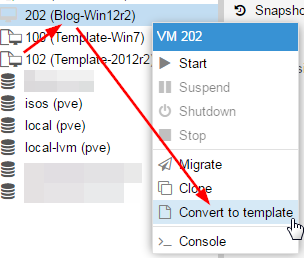
Converting a VM to a template in Proxmox


VM #2 – Creating your 2012r2 Domain Controller
Creating a new VM by cloning your template
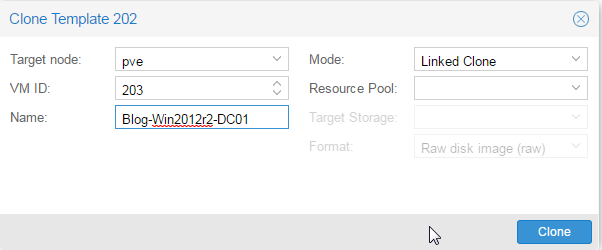
2) Right click on your template and select Clone
- Right click on network icon on bottom right and click Network and Sharing
- Click Ethernet
- Properties
- IPv4
- Properties
6) This is not required, but this is a good time to change your hostname as well:
- Click the folder on the launch bar
- Right click This PC on the left side
- Properties, Change settings
- Change
- Change the computer name
- Reboot
Promoting your first server to a DC
1) Take a snapshot just in case you mess up :). Trust me, do it!
- To take a snapshot in Proxmox, Select your VM, switch from Console to Snapshot on the second left most bar, and click Take Snapshot.
2) In the Server Manager, at the top right click manage, add roles and features
3) Next, Next, Next
4) Select Active Directory Domain Services
5) Select Add Features
6) Select DNS Server
7) Select Add Features
8) Next, Next, Next, Next
9) Select Restart the destination server automatically if required
10) Yes, Install, Close
11) In server manager, you will see a yellow caution triangle. Click it,
12) Click promote this server to a domain controller
13) Add new forest
14) Name your domain: you can do lab.local for now, or you can make room for more domains in the future with something like lab.proxmox.local.
15) Click Next
16) Create and record the DSRM password
17) Click Next (ignore warning), Next, Next, Next, Install
18) You will see: You are about to be signed out.
19) Click close (or just hang tight)
You now have an Active Directory Domain – Add some users
- Within server manager, which should have just popped up, click tools at the top right and select active directory users and computers
- Double click on your domain to expand it
- Right click on users and add new user
- Name your users however you want, but I like to keep it simple:
- First: User
- Last: 1
- Login name: user1
- Next
- Enter an easy to remember/crack password
- Uncheck user must change at next login
- Check password never expires
- Next
- Finish
- Repeat for user2
- Then I suggest adding some user accounts that you will use as admins. You can go with user1-admin, or even just a simple admin1, admin2
Add at least one admin user to your domain admins group
- Within Active Directory Users and Computers, Double click Domain Admins
- Click Members
- Click Add
- Start typing a username of your admin user and click check names
- Click OK
- Click OK
VM #3: Creating your second 2012r2 server
This VM is optional, but the beauty of using a hypervisor on dedicated hardware is that you most likely have memory and storage space to spare.
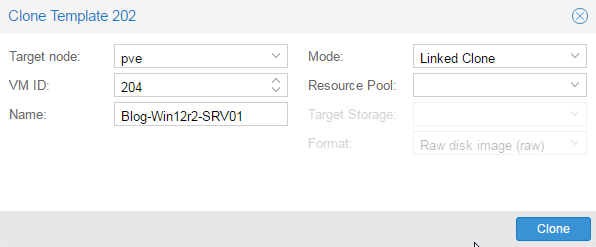
2) Start the server and add it to the domain
Configuring DNS
To add any machine to the domain, the one thing you NEED to do is set the domain controller as the primary DNS server.
1) RDP to server
2) Right click on the networking icon at the bottom left and click Open Network and Sharing Center
3) Select Ethernet Adapter
4) Change the primary DNS server to be the IP address of your DC
Adding host to the domain
While this process is fairly straightforward, I feel like it never works the first time for me. If you run into issues, read the notes right after these steps for ideas.
1) Select the folder icon in the task bar
2) Right click This PC
3) Click Properties
4) Under Computer name, domain, and workgroup settings, click Change settings
5) Click Change
6) Give your machine a better hostname: Workstation01
7) Switch from Workgroup to Domain and specify the domain. For example, aws.local
8) Click OK
9) Enter Domain Admin credentials. Go ahead and use Admin1’s credentials.
10) Once your machine has been added, click OK twice
11) Close the window, and go ahead and Restart Now
12) Repeat this for all servers
Having trouble adding your host to the domain? Here are some troubleshooting tips:
1) Can you ping the IP address of your DC from your other server(s)?
2) Can you resolve the hostname of your DC from your other server(s)?
3) Can you navigate to \\IP_ADDRESS_OF_DC from your other server(s)?
Here are things to look for:
Network Config Settings
— Did you give your DC the right subnet mask when you configured the static IP?
— Did you configure the primary DNS server properly on your non-DC host?
Are you typing in the right domain name when attempting to add your host?
Adding domain users to the remote desktop group
1) Select the folder icon in the task bar
2) Right click This PC
3) Click Properties
4) On the left, click Remote Settings, and enter the domain administrator credentials
5) In the Remote Desktop section of the window, click Select Users…
6) Click Add…
7) Type Domain users and click Check Names
8) Click OK, OK, OK
You should now be able to RDP to this host with any of your domain users (User1, User2, Admin1)
VM #4: Creating our Windows 10 Template
VM #5 & #6: Creating two Windows 10 VMs from the template
5) Enable file and printer sharing
6) Add domain users to the Remote Desktop group
Wrap Up
Are there any specific tools or techniques related to penetration active directory you would like me to cover? If so, leave a comment! If I know how to do it, I’ll cover it. If I don’t, I’ll try to learn it and then I’ll cover it!
