
For a number of years I’ve configured my desktops so that most tasks can be done
using only home row keys on the keyboard, a technique I call home row
computing. It takes the Vi idea of staying on the home row to every app, all
the time, but without using modes so things are simpler.
I’ve described an implementation for Windows, but I have since
moved to Macs and back to a qwerty keyboard (away from Dvorak). The current
setup is described in this post. It uses familiar Vi key bindings and is far more
suitable. It’s fairly painless to configure on the Mac and has never given me
any problems, thanks to Takayama Fumihiko’s awesome keyboard apps.
Using this is a joy. It’s really fast, easy on the hands, and makes you feel
like a geek god. If you don’t use Vim, you’ll now have one of its benefits in
your favorite editor and in other apps, plus a weapon against smug Vimmers. If
you already use Vim, your cherished hjkl keys become universal and pressing
Esc gets a hell of a lot easier.
Some of the important keys that must be moved to home row are the arrow keys,
Esc, delete (backspace) and forward delete. Another helpful home row
task is moving and resizing windows. The key to all this is remapping Caps Lock to allow combinations of Caps Lock plus a home key to do these tasks.
Again, there are no modes involved here, Caps Lock works as a modifier like
the cmd and fn keys. Here’s a good start:
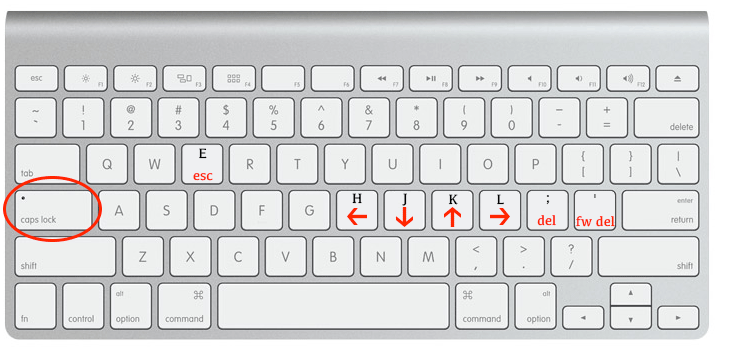
I have left several keys unmapped so you can customize your own setup, and we’ll
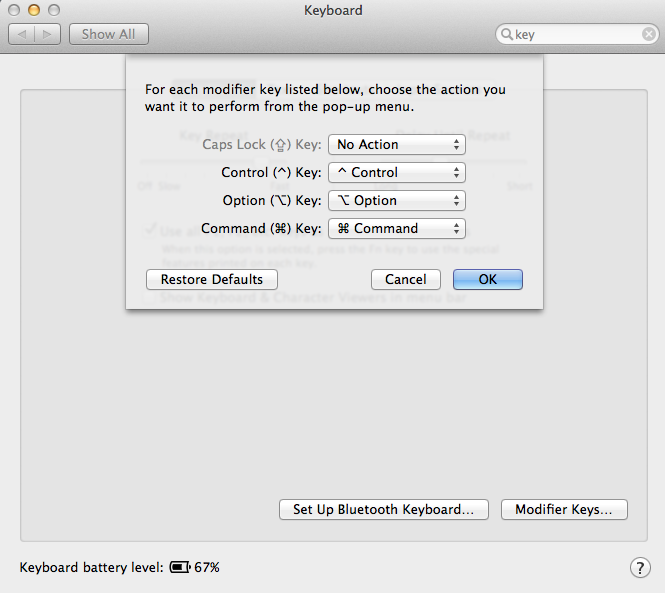
get to window management in a moment. The first step is to set Caps Lock to
No Action in System Preferences > Keyboard > Modifier keys:
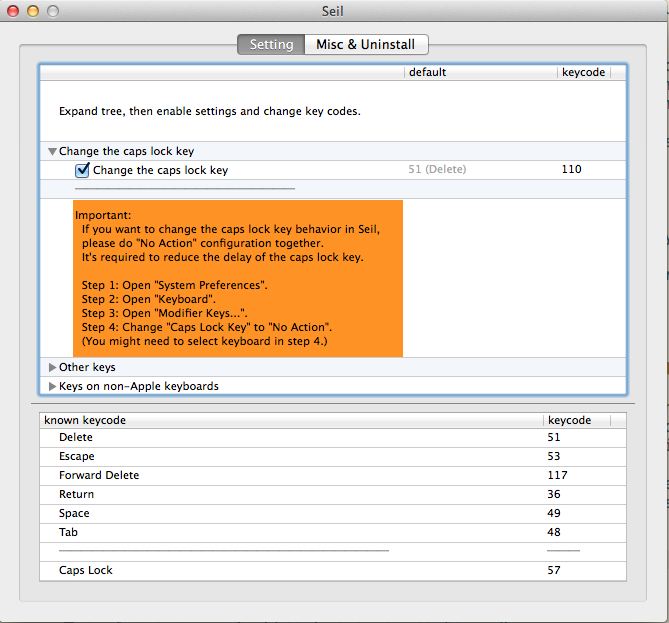
Now we must remap the Caps Lock key code to something else. To do so, you need
a small tool called Seil
(open source). You can map Caps Lock to any
other key, like cmd or option. So if you don’t want to go all-out home row,
you can still benefit from the remapping.
I like to remap Caps Lock into something that guarantees no conflicts ever
for our combos. So I use key code 110, which is the Apps key on a Windows
keyboard and is safely absent from Apple keyboards:
Now we’re in business, the world – or at least the keyboard – is our oyster. The
maker of Seil also makes Karabiner,
open as well and an outstanding
keyboard customizer for OS X. I have no affiliation with these tools, apart from
being a happy user for years. If you end up using them, please donate. So go
ahead and install Karabiner, and you’ll see a plethora of keyboard tweak
possibilities:
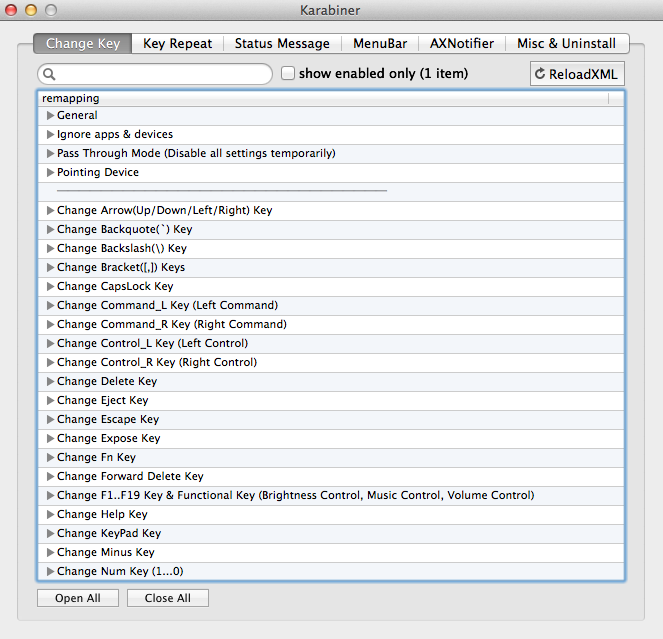
Each of the tweaks can be toggled on and off. There are even native Vi, Vim, and
Emacs modes. However, I don’t like the built-in ones, so I built my own config.
Go to Misc & Uninstall and click Open private.xml:
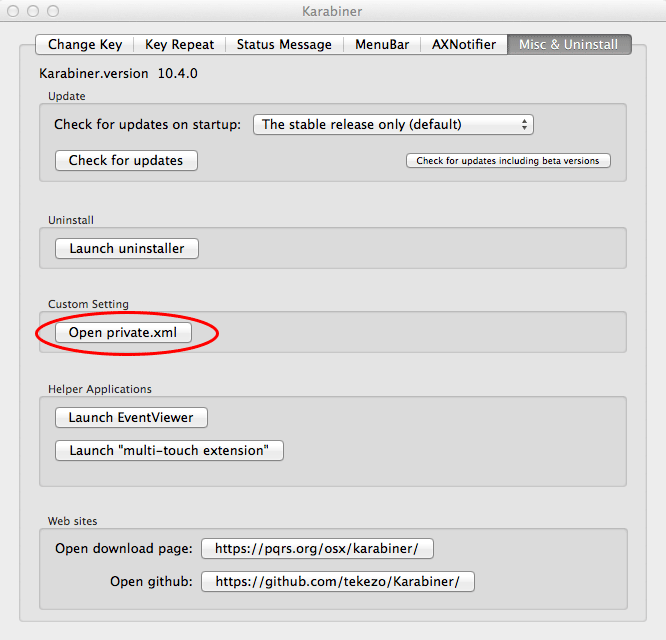
In this file, ~/Library/Application Support/Karabiner/private.xml, you can
define your own keyboard remapping scheme. I actually symlink that to
a Dropbox file to keep the configuration consistent across my machines, but
at any rate, here is a file you can use to implement what we have
discussed so far. Drop the file in, click ReloadXML and you’ll have this:
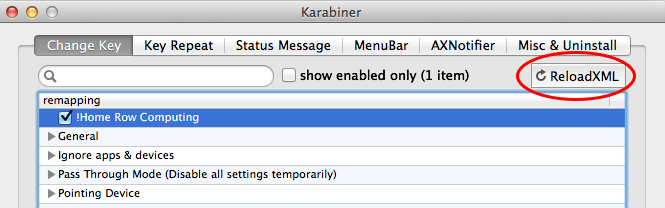
Home Row Computing is at the top (prefixed with ! for sorting). Toggle it on,
and you’re done. Enjoy your new keyboard layout, do a search on Spotlight and
see how fast and smooth it is to choose an option.
Finally, there is window management. That’s an area where you can fumble quite
a bit, resizing and moving about clumsily with a mouse. My favorite options to
make it fast and homerow-friendly are
ShiftIt (open) and
Moom (best $10 I ever spent, no affiliation).
There are some others, but to me Moom towers above the rest. It has a great
two-step usage, where one hot key activates it:
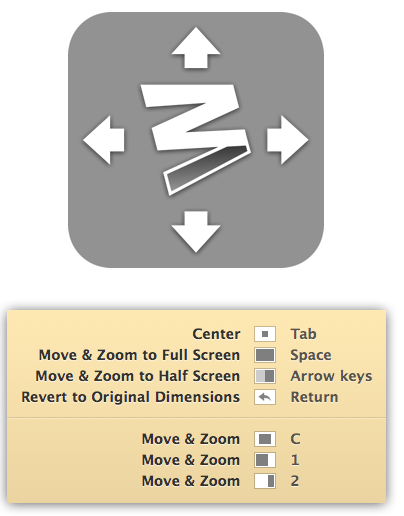
And the following key triggers a command you get to define using window
primitives like move, zoom, resize, and change monitors. You can also define
shortcuts that run commands directly. Moom has some handy default actions:
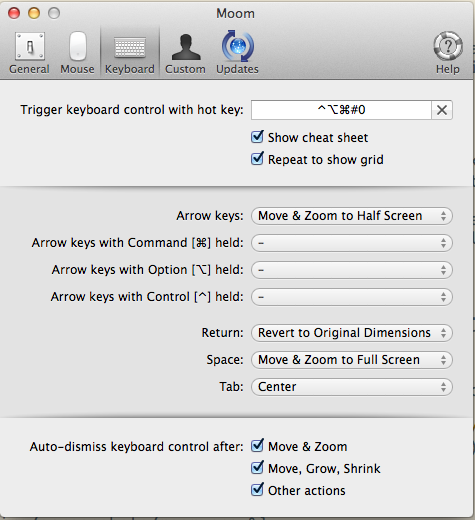
Out of box, arrow keys can be used to send a window to the left, right, top, or
bottom of the screen, and Moom natively interprets hjkl as arrows making it easy
to stay on home row. You can associate keys with various commands and precise
window positions:
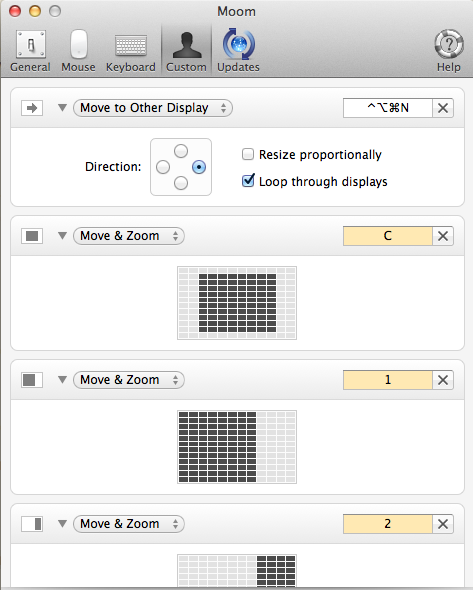
This is gold for large monitors like Apple Thunderbolts.
I remap Caps Lock + M into the global Moom shortcut for painless activation.
This allows me to set the shortcut itself to something bizarre that won’t
conflict with anything but would be a dog to type. Currently it’s an
improbable Fn + Control + Command + M.
I also have Caps Lock + N activating a Moom command that cycles a window
between my two monitors. Both of these shortcuts are in the keyboard map
I provided.
If you have any questions, let me know. I know a number of keyboard nuts out
there use this scheme on Windows and Linux, and I hope this makes it easy to do
so on Macs.
